 |
 |
| CPUHog is a 32-bit Windows CPU stressor. Use CPUHog to put |
| a vigorous load on the system processor. This can be used to check |
| for any possible CPU thermal Overheating conditions or to test how |
| other applications react when the CPU load is high. |
Current Release: Version 1.0 - Nov 25, 2002 |
CPUHog Download |
| CPUHog Screen Shot |
 |
 |
| Top |
| |
 |
| Home | Software | Web Design | Links | Profile | Contact |
| Copyright © 1998-2010 MicroTask Computer Services. All rights reserved. |
Showing posts with label Utilities. Show all posts
Showing posts with label Utilities. Show all posts
Friday, March 26, 2010
CPU Hog - This Will Flood Your CPU - Very handy for your Vmware DRS Cluster Test (During DRS you may need to Tax your CPU with high load)


Thursday, March 25, 2010
VMware vSphere 4 Guided Consolidation
I have added VMware Mylearn Demo Link (Click this Link) - for Guided Consolidation Demo
(Doesn't work If Pop Up Blocker is there)
Article Extract From : Whugh Griffin Word Press (Below)
Guided Consolidation is a tool that will allow you to monitor a physical computer and determine it’s potential for adding to your virtual environment. I would highly recommend it for a small to mid sized business looking for some assistance with their P2V process. It has an easy to use interface with a more simplified approach than using the full VMware Capacity Planner utility.
It is free and can be installed from the vCenter installation CD. Once installed, it can be accessed from the vCenter Home Menu. In order to scan a physical computer, you will need to make sure the credentials provided during installation must have administrative permissions on any remote Windows systems selected for analysis. This user account supplied during installation is used to run the “VMware vCenter Collector Service”, a Windows service used to connect to the remote systems.
Once the tool begins to scan the system, it will gather data and display CPU information and utilization, memory information and utilization as well as the computer name. Sometimes it may take up to 1hr before this process begins. Be prepared to allow 24 to 48hrs for this process to complete as Guided Consolidation builds a confidence metric level. Once a high enough confidence level is reached, the status of the system changes to “Ready for consolidation”.
At this point, a consolidation plan is available by selecting the analyzed computer and clicking the “Plan Consolidation” button.
This plan will include a star rating which will identify how likely the physical computer is for virtualization and will even make a recommendation for the target host. The rating system ranges from 1 to 5 stars, with 5 stars indicating the system is a high candidate for the proposed host. From the Consolidation Wizard, you can change several things, the name of the VM, the host being assigned too or even remove a VM altogether from the list.
Multiple systems can be converted to VM’s using this wizard, it’s a very simple process and by the click of one button you are off to the races converting your physical systems to virtual machines.
***Keep in mind that before using Guided Consolidation that a datacenter exists and a host is added to the vCenter Server inventory. ***
I would highly recommend looking at this pdf: http://www.vmware.com/pdf/vsphere4/r40/vsp_40_admin_guide.pdf or picking up a copy of Mastering VMware vSphere 4 by Scott Lowe for more in-depth information on Guided Consolidation.
I hope this gives you a basic understanding of how Guided Consolidation can help you plan a smooth P2V process.
(Doesn't work If Pop Up Blocker is there)
Article Extract From : Whugh Griffin Word Press (Below)
Guided Consolidation is a tool that will allow you to monitor a physical computer and determine it’s potential for adding to your virtual environment. I would highly recommend it for a small to mid sized business looking for some assistance with their P2V process. It has an easy to use interface with a more simplified approach than using the full VMware Capacity Planner utility.
It is free and can be installed from the vCenter installation CD. Once installed, it can be accessed from the vCenter Home Menu. In order to scan a physical computer, you will need to make sure the credentials provided during installation must have administrative permissions on any remote Windows systems selected for analysis. This user account supplied during installation is used to run the “VMware vCenter Collector Service”, a Windows service used to connect to the remote systems.
Once the tool begins to scan the system, it will gather data and display CPU information and utilization, memory information and utilization as well as the computer name. Sometimes it may take up to 1hr before this process begins. Be prepared to allow 24 to 48hrs for this process to complete as Guided Consolidation builds a confidence metric level. Once a high enough confidence level is reached, the status of the system changes to “Ready for consolidation”.
At this point, a consolidation plan is available by selecting the analyzed computer and clicking the “Plan Consolidation” button.
This plan will include a star rating which will identify how likely the physical computer is for virtualization and will even make a recommendation for the target host. The rating system ranges from 1 to 5 stars, with 5 stars indicating the system is a high candidate for the proposed host. From the Consolidation Wizard, you can change several things, the name of the VM, the host being assigned too or even remove a VM altogether from the list.
Multiple systems can be converted to VM’s using this wizard, it’s a very simple process and by the click of one button you are off to the races converting your physical systems to virtual machines.
***Keep in mind that before using Guided Consolidation that a datacenter exists and a host is added to the vCenter Server inventory. ***
I would highly recommend looking at this pdf: http://www.vmware.com/pdf/vsphere4/r40/vsp_40_admin_guide.pdf or picking up a copy of Mastering VMware vSphere 4 by Scott Lowe for more in-depth information on Guided Consolidation.
I hope this gives you a basic understanding of how Guided Consolidation can help you plan a smooth P2V process.
Wednesday, March 24, 2010
Virtual Appliances from VMware MarketPlace
Virtual Appliances from VMware Market Place
Explore more than a 1000 cloud ready virtual applications in the VMware Virtual Appliance Marketplace. Browse and search through the largest library..Don't surprise, you can make up & running almost every service in minutes using appliances
ex: DNS, DHCP, Monitor VM's, Backups, iSCSI Targets, AD
Click here to visit Instant VM Appliances Store
How to exempt the DELL OMSA port number only on ESX Firewall?
How to exempt the DELL OMSA port number only on ESX Firewall?
(Without Disabling entire Firewall)
Dell Openmanage Installation on ESX
Firstly the standard steps (to Install OMSA):
1. Download the tar file from the ftp site or the support site
2. Copy the file using winscp(this is what i use at least) to /tmp/openmanage on the server
3. Log into the box either via winscp /via putty or onto the console directly and type in:
cd /tmp/openmanage
tar -zxvf OM_X.X.0_ManNode_A01.tar.gz (OM_6.2.0_ManNode_A00.tar currently)
4. Once the files have unpacked type in:
cd linux/supportscripts/
./srvadmin-install.sh -x (-x is for express install and installs everything but if you only want to install specific features the commands you can also use are -d -w -r –s )
-d = Dell Agent
-w = web interface
-r = DRAC services
-s = storage management
5. Once the files have unpacked and installed type:
srvadmin-services.sh start
6. When the various component services have finished starting type in:
cd /tmp
rm -rf Openmanage
7. To allow the Openmanage agent to function the following firewall commands
need to be run, these open the firewall ports required:
# esxcfg-firewall -o 1311,tcp,in,OpenManageRequest
(Without Disabling entire Firewall)
Dell Openmanage Installation on ESX
Firstly the standard steps (to Install OMSA):
1. Download the tar file from the ftp site or the support site
2. Copy the file using winscp(this is what i use at least) to /tmp/openmanage on the server
3. Log into the box either via winscp /via putty or onto the console directly and type in:
cd /tmp/openmanage
tar -zxvf OM_X.X.0_ManNode_A01.tar.gz (OM_6.2.0_ManNode_A00.tar currently)
4. Once the files have unpacked type in:
cd linux/supportscripts/
./srvadmin-install.sh -x (-x is for express install and installs everything but if you only want to install specific features the commands you can also use are -d -w -r –s )
-d = Dell Agent
-w = web interface
-r = DRAC services
-s = storage management
5. Once the files have unpacked and installed type:
srvadmin-services.sh start
6. When the various component services have finished starting type in:
cd /tmp
rm -rf Openmanage
7. To allow the Openmanage agent to function the following firewall commands
need to be run, these open the firewall ports required:
# esxcfg-firewall -o 1311,tcp,in,OpenManageRequest
The vmClient 4.0 is released
The vmClient 4.0 is released

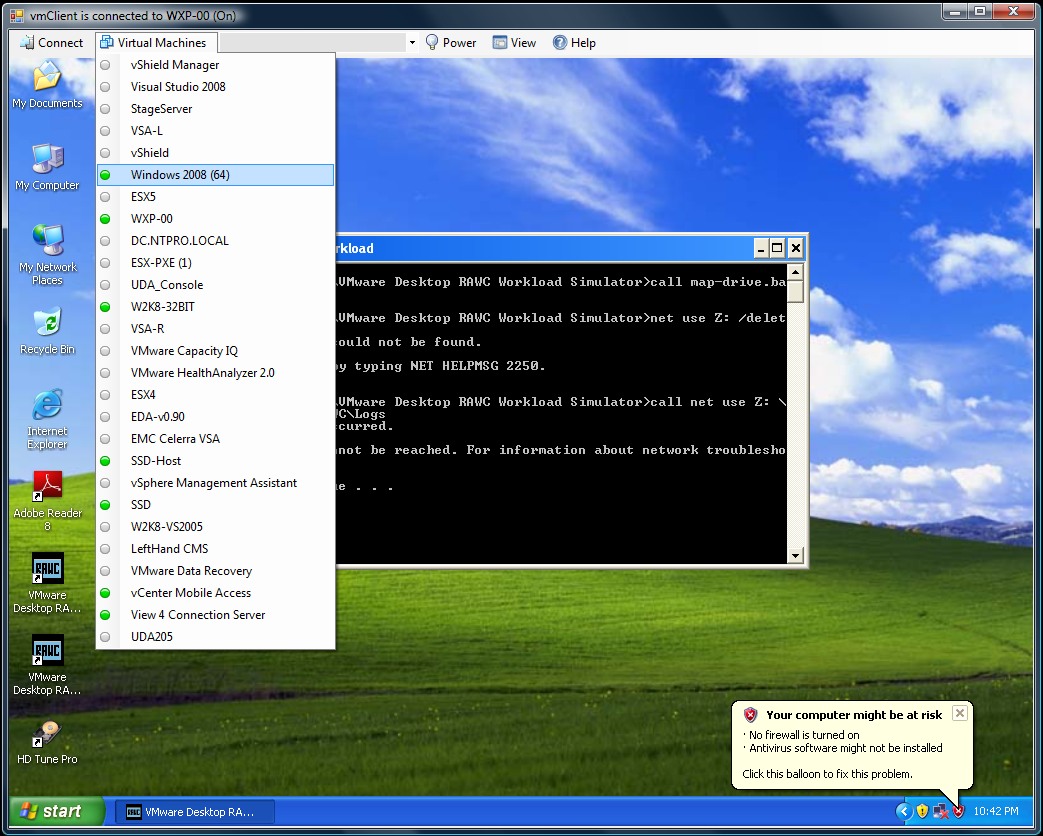 The vmClient is a lightweight tool which enables you to control the power of your virtual machines, it’s also capable of presenting the MKS console of your virtual machines. Before you can use the vmClient, you have to install the vSphere client on the same system. After starting the vmClient, you can logon to your vCenter server or individual ESX4 or ESX4i host. A list with available virtual machines will be presented after choosing the Virtual Machines menu item, you can also easily identify the power state of the virtual machines. Grey is powered off, green is powered on, yellow is suspended and red indicates that the virtual machine has an alarm. When you’re working in an RDP session there’s a menu item which can generate a Ctrl-Alt-Del in the guest OS instead of pressing Ctrl-Alt-Ins. The vmClient can run without borders in borderless mode. The menu bar has an option to search for virtual machines, just type in the first characters of your virtual machine name and the list will be filtered.
 The number of virtual machines can be too high to fit in the “Virtual Machine” menu item so I’ve added an extra option to disable this menu and use the search menu instead. The option to customize the user interface of the vmClient can be done by changing a few registry settings. You’re able to show or hide menu items using this hive.
HKEY_CURRENT_USER\Software\VB and VBA Program Settings\NTPRO.NL\vmClient
You can also pre-select a default virtual machine in this hive. There are two recorded demo sessions available, one which show a walkthrough and a second which shows how to convert the vmClient into a VDI client. The trail version is limited to a maximum number of 50 virtual machines and shows a splash screen with my picture in it. The registered version can be bought online and has no virtual machine limit, you can also get rid of the splash screen. :-) The Buy Now link is available in the help menu. If you have any ideas or suggestions on improving the vmClient or you’ve found a bug, you know where to reach me. Have fun with it.
How to convert the vmClient into a VDI client
A general walkthrough
The vmClient 4.0 can be downloaded from this location: http://vmclient.nl/
VMware Labs is online and it Rocks
VMware Labs is online and it Rocks
 VMware Labs is the place where VMware engineers share their cool tools. There is a wide range of tools here for you, including one for automating tasks, getting ESX performance graphs, a rich Internet application framework and much more. You really should check-out the fling section, this is too good to be true.
Fling is defined as "a brief casual relationship" as referenced on this site. The "flings" are skunkworks and ideas by VMware engineers that are not yet part of product offering. Feel free to try them and give your feedback.
Apache Pivot
Apache Pivot is a platform for building rich internet applications in Java. It combines the enhanced productivity and usability features of a modern RIA toolkit with the robustness of the industry-standard Java platform.
Dynamo RIO
DynamoRIO is a runtime code manipulation system that supports code transformations on any part of a program, while it executes. DynamoRIO gives complete control over the runtime code stream and does not limit transformations to trampoline insertion.
esxplot
The software runs on Linux systems, and generates timeseries graphs for selected esxtop fields (as png graphs). The software will also generate simple statistical measures including mean and standard variation for selected esxtop fields.
Onyx
Onyx is a standalone application that serves as a proxy between the vSphere Client and the vCenter Server. It monitors the network communication between them and translates it into an executable PowerShell code. Later this code could be modified and saved into a reusable function or script.
SVGA Sonar
SVGA Sonar is a demo application for SVGADevTap. SVGADevTap is a user-level library that communicates with the VMware SVGA guest driver to provide low-latency notifications of changes to the screen.
vApprun
The vapprun command-line tool brings the full vApp model to Workstation and Fusion. It builds vApps that contain multiple VMs or nested vApps. Configure start/stop ordering of child elements of a vApp. Power-on/power-off/shutdown of vApps.Supports OVF Properties and the OVF Environment.
vCMA
Ever wish you could restart a virtual machine or migrate it to another host from the convenience of your mobile phone? With VMware vCenter Mobile Access, you can monitor and manage VMware Infrastructure from your mobile phone with an interface that is optimized for such devices.
VGC
VMware Guest Console (VGC) is an application to manage the Guest Operating Systems installed on a VM. VGC includes a Unified Task Manager, Guest file system explorer, Snapshot Manager and a VM Manager. VGC is supported with vmware server and desktop products like vSphere, Server 2.0 and Workstation and can connect to multiple hosts simultaneously.
VI Java
The VMware vSphere Java API provides a full set of libraries to manage and control VMware virtual machines and servers. Ver 2.0 includes a high performance Web Service engine much faster/smaller than Apach AXIS.
Virtual USB Analyzer
We developed vusb-analyzer at VMware as an efficient way to debug our own USB virtualization stack. We wanted a tool that made it easy to see problems at a glance, and we wanted a way to solve both correctness and performance bugs. As a result, we ended up with what we think is a fairly unique tool. We’re excited to have the opportunity now to release this tool as open source software, under the MIT license.
http://labs.vmware.com/
VMware Guest Console (VGC)
Technology Preview - VMware Guest Console (VGC)
Cravik1 has posted two technology preview videos of the upcoming VMware Guest Console Virtual Appliance on YouTube.VMware Guest Console Demo - Part1
VMware Guest Console Demo - Part2
VMware Guest Console (VGC) is an application to manage the Guest Operating Systems installed on VMs. VGC includes a Unified Task Manager, Guest file system explorer, Snapshot Manager, VM Manager and more. VGC is supported with vmware server and desktop products like vSphere, Server 2.0 and Workstation and can connect to multiple hosts simultaneously.
Update : http://labs.vmware.com/flings/vgc
VMware Capacity Alerts on your Desktop (Free Cool Tool)
VMware Capacity Alerts on your Desktop
I thought you might be interested in the new fee tool that VKernel released today. Capacity View provides quick visibility and alerting to the storage and server capacity issues in your VMware virtualized infrastructure. This powerful tool is a desktop app that downloads in 2 minutes and can be connected to ESX, vCenter or VKernel's VM Stats or Optimization Pack applications.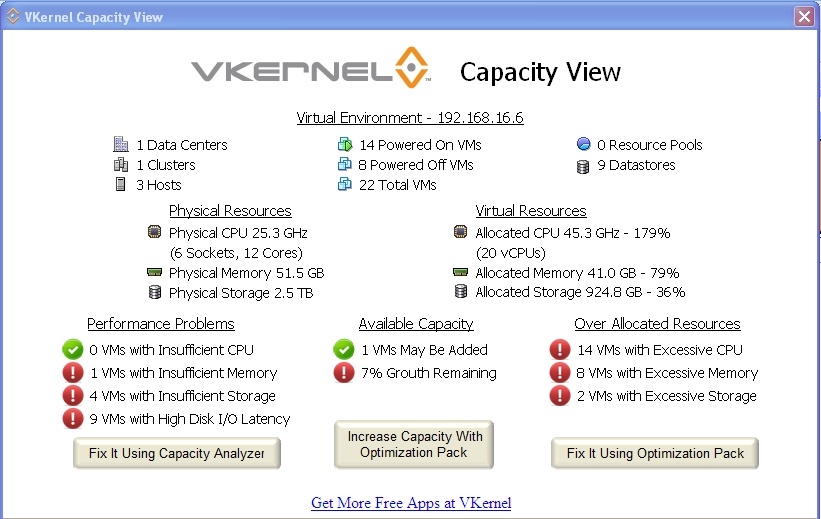 Capacity View identifies capacity based performance issues such as virtual machine I/O latency or under-allocated CPU, memory or storage. Additionally, it monitors your available capacity for new VM deployments and shows you which over-provisioned VMs can be rightsized to free up wasted capacity.
http://www.vkernel.com/solutions/capacity-view
Subscribe to:
Posts (Atom)

