Saturday, October 18, 2014

VMware released fix for ShellShock (Bash Bug) for various products..

WHAT IS SHELLSHOCK?
Shellshock is a hole in Bash that, when carefully accessed, lets an outsider's code be processed and executed on a user's computer.
Linux specialist Stephane Schazelas discovered the bug this week, but it's likely existed in the system for at least 20 years.

HOW CAN HACKERS EXPLOIT SHELLSHOCK?
An attacker could use the hole to insert code into a victim's computer, running commands and prompting the machine into action. That means an outsider could control a computer remotely. The attacker could access files, copy and delete data, and run programs.
"Using this vulnerability, attackers can potentially take over the operating system, access confidential information, make changes,

HOW  TO FIX SHELL-SHOCK ON VMWARE PRODUCTS?
http://kb.vmware.com/selfservice/microsites/search.do?language=en_US&cmd=displayKC&externalId=2090740


Saturday, September 20, 2014

VMware labs New Fling: PowerActions for vSphere Web Client (Run PowerCLI within Web Client)

PowerActions is a  Free Plugin can be added to vSphere Web Client and let users Run "PowerCLI" Scripts within "Web Client".. Doesn't it exciting.. You have the Power of GUI + CLI Automation with in Single Interface..

Eager to know more about Requirements, How to Install & Download URL's..
Please go through below link..

http://blogs.vmware.com/PowerCLI/2014/09/poweractions.html#more-1860


Wednesday, March 6, 2013

New Fling "DrmDiagnose" from VMware Labs

New Fling "DrmDiagnose" from VMware Labs

VMware vCenter has provided sophisticated resource management controls
(to set resource reservations, limits, shares, etc.) for virtual machines since vCenter 2.0. However, we have noticed that not everyone uses these controls
due to confusion about how these features can affect other virtual machines in the resource pool.
For instance, what happens when you increase the CPU size of a VM?
How does that affect the other VMs in the same cluster?

This Fling attempts to make this easier by providing resource management recommendations based on inventory dumps of the existing environment. It compares the current resource demands of a VM and suggests changes to the resource allocation settings to achieve the performance you are looking for. It will also let you know how it impacts the other VMs.

http://labs.vmware.com/flings/drmdiagnose

Sunday, February 17, 2013

VMware acquired Virsto - Software Defined Storage (SDDC approach)

Introducing the Virsto Storage Hypervisor

VMware is Geared up & taking big leap on "Software Defined Data Center" by acquiring Virsto.
Virsto has developed a new approach for storage in virtualized environments. Virsto delivers purpose-built software defined storage with its VM-centric storage hypervisor, which provides a set of high-performance data services.

Traditional Method to access Storage..


The Hypervisor (applicable to ESX, ESXi and Hyper-V) acts as a multiplexer to the VMs’ I/O, interleaving the I/O of all the VMs on the host.  As a result, the I/O coming from the Hypervisor is mixed up.  This I/O is what is presented to the underlying storage layer.

When this I/O stream hits the storage layer, it looks like random I/O.  Random I/O presents a challenge for traditional storage because with spinning disks, the mechanics of laying down random writes on disk causes rotational latencies and prolongs seek times.  The consequence of this type of I/O is that storage performance, particularly write performance, degrades.


Virsto Method (Software Defined Storage)


The I/O Optimization data service addresses the I/O randomness due to the server Hypervisor.

The Virsto Storage Hypervisor sits on each host and presents a virtual storage appliance (VSA) to the VMs on the host.  The VMs see Virsto as a new storage mount point, which means Virsto is in the I/O path for the VMs.  Virsto offloads the I/O from the Hypervisor in a more efficient manner.

With the I/O Optimization data service, the Virsto Storage Hypervisor will perform a set of actions on the I/O so it is sequentialized and sent to the storage layer in orderly, logical blocks.

References

http://virsto.com/products/virsto-overview/
http://www.vmware.com/company/news/releases/vmw-virsto-021113.html

Wednesday, February 6, 2013

VMware KBTV - vCenter Heartbeat Installation & Validation

Are you interested to check How to install & validate -> vCenter Server Heartbeat.
Check out below VMware KBTV video.


VMware vCenter Server Heartbeat delivers high availability for VMware vCenter Server,
Protecting virtual infrastructure from application, configuration, operating system, network and hardware-related problems. Protect VMware vCenter Server and its database against all types of planned and unplanned downtime with seamless, rapid failover and failback on both physical and virtual platforms. Proactively monitor VMware vCenter Server and ensure seamless failover and failback of for in local and remote locations.

In a Nutshell, vCenter Heartbeat is “Cluster suite” to provide HA for vCenter Server.


Tuesday, February 5, 2013

HOTLINK SUPERVISOR - Heterogeneous Hypervisors – All under one Roof i.e VMware vCenter

HotLink SuperVISOR for VMware vCenter is a certified VMware Ready solution that extends the robust management capabilities of VMware vCenter to natively support all major enterprise Hypervisors — including Microsoft Hyper-V, Citrix XenServer and Red Hat Enterprise Linux (KVM).

Unlike overlay solutions that provide only basic cross-platform features on top of multiple native management toolsets, HotLink SuperVISOR abstracts the virtual infrastructure, so you can support other hypervisors utilizing the underlying capabilities of VMware vCenter. No additional management console is required — even to support advanced features like live migration and DRS!
With HotLink SuperVISOR you can:
  • Manage multi-hypervisor natively with VMware vCenter!
  • Clone, snapshot and migrate heterogeneous workloads
  • Utilize existing templates cross-platform
  • Automate any-to-any workload conversions
  • Eliminate redundant native management toolsets
  • Leverage existing VMware skills & investment
http://hotlink.com/technology/supervisor-vmware.html
Free edition Supports 1 Hypervisor, 3Hosts, 15 VM's. - 
A Short Video on HotLink SuperVISOR - by David Davis - from TrainSignal


Wednesday, January 30, 2013

What is CTK file in Datastore (VM's folder)?

CTK file is created on VM's folder, when CBT is enabled on VMDK level (VM -> Edit Settings -> Options - General -> Confg paramaters) -> Refer below KB's for details.

Changed Block Tracking (CBT) is a VMware feature that helps perform incremental backups.
VMware Data Recovery uses this technology, and so can developers of backup and recovery software.

What is CBT and how it helps backup software?
If you look at the VM Aware backup software, Incremental Backups also  takes backup of Full VMDK size – If the file is modified after last Full Backup. In case of CBT is enabled assume few blocks are changed/added on VMDK -> CBT Helps to take only modified / added blocks not entire Giant VMDK. You may compare this to “Block level Incremental backups” (Not File Level incremental backups)

If CBT (Change Block Tracking) is enabled on a VM (we need to enable on each VMDK separately),
CBT feature will create additional files like vmname-cbt.vmdk, vmname-1-cbt.vmdk. (one CTK for one VMDK) in the same directory where it stores VMDK Descriptior & Flat Files

Once CBT is enabled on VMDK, since then ->
If any block changed on that VMDK - it will be recorded on associated .CTK map file of that VMDK. This map file (.CTK) helps VM Aware backup softwares to identify,
Since last Full backup, What are the blocks changed/added on that VMDK,
So Backup S/w does not need to backup whole VMDK - only backup the changed/added blocks.

By the way, What do mean by Block here and what would be the size of each Block??
Here the blocks are the small portions of VMDK (No relation with 1MB/8MB block size of VMFS)
CBT perspective, Block size (small portion of VMDK) - start from 64KB and varies if VMDK is big.

CBT is on a per VMDK level and not on a VMFS level.
CBT has variable block sizes which are dictated by the size of the VMDK.
CBT is a feature that lives within the VMKernel and not within VMFS.
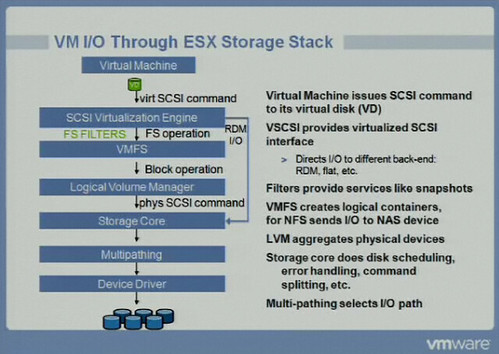
CBT is a FS Filter as shown in the VMworld slide below


References
http://kb.vmware.com/selfservice/microsites/search.do?language=en_US&cmd=displayKC&externalId=1020128

http://kb.vmware.com/selfservice/microsites/search.do?language=en_US&cmd=displayKC&externalId=1031873

http://itknowledgeexchange.techtarget.com/virtualization-pro/what-is-changed-block-tracking-in-vsphere/

http://www.yellow-bricks.com/2009/12/21/changed-block-tracking/

Tuesday, January 29, 2013

Free VMware Learning Videos (By VMware)

www.vmwarelearning.com

Excellent opportunity to expand your VMware skills - Take advantage right away..
 
Grow your IT skills with free training, expertise, and insights on VMware products, all in one convenient location.
 
Instructional Videos – freely accessible, these short technical videos allow VMware technical experts to provide tips and step-by-step instructions on product features, design best practices, configuring, deploying and running your virtual infrastructure.

    Site Recovery Manager
    vCenter Operations
    vCenter Protect
    vCloud Director
    vFabric/Spring
    View
    vSphere
    vSphere Storage Appliance
    vCenter Orchestrator

UCS Manager Simulator Overview

Are you interested to work(simulate) on Cisco UCS Blades - and don’t want to invest heavy on Cisco UCS blade lab now (or) You don’t want to play with your Production Cisco UCS boxes - But to Practice / Train on UCS Blades - Here you go..


UCS - Simulator - Download URL
http://developer.cisco.com/web/unifiedcomputing/ucsemulatordownload

More on Setting Up appliance
http://www.petri.co.il/cisco-ucs-manager-simulator.htm


Cisco UCS Platform Emulator is the Cisco UCS Manager application bundled into a virtual machine (VM). The VM includes software that emulates hardware communications for the Cisco Unified Computing System. The UCS Platform Emulator (UCSPE) was developed to enable the use of Cisco UCS Manager and the UCS XML API without requiring physical hardware. UCSPE significantly shortens the development cycle for applications that are based on the UCS XML API. You can create and test programs using only UCSPE installed on a laptop.

UCSPE presents a controlled environment for the following:


  • Emulation of large-scale environments
  • Changes in the hardware inventory (device discovery)
  • Firmware upgrade testing
  • Troubleshooting real UCS problems
For example, you can use Cisco UCS Platform Emulator to create and test a supported Cisco UCS configuration, or to duplicate an existing Cisco UCS environment for troubleshooting or development purposes. Cisco UCS Platform Emulator supports both DHCP and static IP. By default, Cisco UCS Platform Emulator is configured to use the local network to obtain an IP address via DHCP. If your network does not include a DHCP server, you must assign a static IP address to Cisco UCS Platform Emulator.

vOptimizer Free | Storage Tool

vOptimizer Free examines VM storage allocations to detect VMs that are running out of disk space and identify VMs that are over-allocated in storage. vOptimizer Free also identifies misaligned virtal machines to improve performance.

Key Features:

    Detect VMs running out of storage
    Detect VMs with over-allocated storage
    Detect VMs with misaligned disk block partitions

More info at below URL
http://www.vkernel.com/products/voptimizer-free


vOPS™ Server Explorer

vOPS™ Server Explorer is -> Freeware suite comprised of multiple utilities that provide different angles of visibility into virtual environments.

1) Storage Explorer
Storage performance and capacity views across datastores and VMs that helps VM admins to get better visibility of their storage environment.

2) Change Explorer
Lists all changes that occurred to datacenters, clusters, resource pools, hosts, datastores and VMs within the previous seven days with associated risk impact

3) Environment Explorer
At-a-glance statistics of all hardware and virtual objects in an environment, VMs suffering from configuration and performance issues, details on efficiency problems, plus capacity for new VMs.

4) vScope Explorer
Designed to assess the health of a virtualized environment, this utility immediately identifies VMs, hosts and datastores that are suffering performance, capacity and efficiency issues.

5) SearchMyVM Explorer


Based on the award-winning SearchMyVM stand-alone free tool, this utility provides "Google-like" search capabilities into a virtual environment, and allows for export of the resulting reports.

http://www.vkernel.com/products/server-explorer/overview


Introducing VMware vCenter Support Assistant 5.1

VMware introduced "vCenter Support assistant"  - helps VMware Admins to log a case easily..
This will avoid the traditional way of logging ticket (below 3 steps - in 1 step now)
Ready made Plugin -  install on VC, will do all the jobs in "single window" for you..

1) Create VMware support bundle (log)
2) Create new SR with VMware
3) Upload Logs to VMware

VMware vCenter Support Assistant 5.1 is a free, downloadable plug-in for VMware vCenter Server. It provides an easy-to-use, secure, one-stop shop both for creating and managing support requests and generating and uploading logs. It is deployed as a virtual appliance and integrates with VMware vCenter Server as a plug-in that can be accessed using either the VMware vSphere Client or the VMware vSphere Web Client.

More about Plugin & Download Link
http://blogs.vmware.com/kb/2013/01/introducing-vmware-vcenter-support-assistant-5-1.html#.UQf7dvJ0g9I


Sunday, August 26, 2012

version, build, release date of Various VMware products like (ESX, ESXi, vCenter Server, etc..)

Release/Build Info of ESX, ESXi, vCenter Server, etc..

v-Sphere land has a great consolidated table - URL below.

http://vsphere-land.com/vinfo/release-build-info

Friday, July 13, 2012

Daily Health Reports for vCenter by Alan (http://www.virtu-al.net)

Have you ever thought.. get "Granular Report" of your VC - Full view of VC on HTML report!!
You should visit below..


http://www.virtu-al.net/vcheck-pluginsheaders/vcheck/


Report contains below - Damn easy via Power CLI..
  • General Details
    • Number of Hosts
    • Number of VMs
    • Number of Templates
    • Number of Clusters
    • Number of Datastores
    • Number of Active VMs
    • Number of Inactive VMs
    • Number of DRS Migrations for the last days
  • Snapshots over x Days old
  • Datastores with less than x% free space
  • VMs created over the last x days
  • VMs removed over the last x days
  • VMs with No Tools
  • VMs with CD-Roms connected
  • VMs with Floppy Drives Connected
  • VMs with CPU ready over x%
  • VMs with over x amount of vCPUs
  • List of DRS Migrations
  • Hosts in Maintenance Mode
  • Hosts in disconnected state
  • NTP Server check for a given NTP Name
  • NTP Service check
  • vmkernel warning messages ov the last x days
  • VC Error Events over the last x days
  • VC Windows Event Log Errors for the last x days with VMware in the details
  • VC VMware Service details
  • VMs stored on datastores attached to only one host
  • VM active alerts
  • Cluster Active Alerts
  • If HA Cluster is set to use host datastore for swapfile, check the host has a swapfile location set
  • Host active Alerts
  • Dead SCSI Luns
  • VMs with over x amount of vCPUs
  • vSphere check: Slot Sizes
  • vSphere check: Outdated VM Hardware (Less than V7)
  • VMs in Inconsistent folders (the name of the folder is not the same as the name)
  • VMs with high CPU usage
  • Guest disk size check
  • Host over committing memory check
  • VM Swap and Ballooning
  • ESXi hosts without Lockdown enabled
  • ESXi hosts with unsupported mode enabled
  • General Capacity information based on CPU/MEM usage of the VMs
  • vSwitch free ports
  • Disk over commit check
  • Host configuration issues
  • VCB Garbage (left snapshots)
  • HA VM restarts and resets
  • Inaccessible VMs

Virtual CD - becomes "Show Stopper" for Manual / DRS vMotion - How to solve


Virtual CD - becomes "Show Stopper" for Manual / DRS vMotion - How to solve

1) Tool Based Disconnect (As per docs - host wise)
2) Power CLI based Disconnect (By ESX, Cluster, Datacenter) - Single Shot

Method1 - Tool Based
There is a tool by "Eric Sloof" - This Tool Scans all Virtual Machines and shows if they have a CD connected to it. After scanning the VM’s you can disconnect all the CD’s with a click of  a button.

Method2 - Script Based -I like this way - Power of Reach to ESX / Cluster / Data Center

Execute Script on one ESX Host & disconnect Virtual CD for All VM's on ESX
(Get-VM -Location ( Get-VMHost "ESX host name HERE")) | `
ForEach ( $_ ) { Get-CDDrive $_ | `
Where { $_.IsoPath.Length -gt 0 -OR $_.HostDevice.Length -gt 0 } | `
Set-CDDrive -NoMedia -Confirm:$False }

Execute script on Whole cluster:
(Get-VM -Location ( Get-Cluster "Cluster Name HERE")) | `
ForEach ( $_ ) { Get-CDDrive $_ | `
Where { $_.IsoPath.Length -gt 0 -OR $_.HostDevice.Length -gt 0 } | `
Set-CDDrive -NoMedia -Confirm:$False }

Why not by Datacenter:
(Get-VM -Location ( Get-Datacenter "Datacenter Name HERE")) | `
ForEach ( $_ ) { Get-CDDrive $_ | `
Where { $_.IsoPath.Length -gt 0 -OR $_.HostDevice.Length -gt 0 } | `
Set-CDDrive -NoMedia -Confirm:$False }


Monday, June 11, 2012

ESX host Maintenance mode from ESX CLI

1) login to ESX host to execute below.


To enter Maintenance Mode, at the ESX console:
vimsh -n -e /hostsvc/maintenance_mode_enter

To exit Maintenance Mode :
vimsh -n -e /hostsvc/maintenance_mode_exit

To display whether the ESX Server is currently in maintenance mode or not type:
vimsh -n -e"hostsvc/hostsummary" | grep inMaintenanceMode

Using system libcrypto, version 90810F
inMaintenanceMode = false

(False - means "not in maintenance mode" / True - Means "in maintenance mode") 

Failed write command to write-quiesced partition

ESX box may see below errors, due to some storage box side issues.
you may observe mostly on all the ESX hosts of the VC Cluster - kind of below errors.

ALERT: ScsiDeviceIO: 2352: Failed write command to write-quiesced partition naa.50a9800064656c5a4a5a654e35594123:1 
Extract from /var/log/vmkernel - below
/var/log/vmkernel cpu21:4342)NMP: nmp_CompleteCommandForPath: Command 0x2a (0x4102ff3ac040) to  NMP device "naa.50a9800064656c5a4a5a654e35594123" failed on physical path "vmhba1:C0:T1:L1" H:0x8 D:0x0 P:0x0 Possible sense data: 0x0 0x0 0x0.

/var/log/vmkernel cpu21:4342)WARNING: NMP: nmp_DeviceRequestFastDeviceProbe:
NMP device "naa.50a9800064656c5a4a5a654e35594123" state in doubt; requested fast path state update...

/var/log/vmkernel cpu21:4342)ScsiDeviceIO: 1672: Command 0x2a to
device "naa.50a9800064656c5a4a5a654e35594123" failed H:0x8 D:0x0 P:0x0 Possible sense data: 0x0 0x0 0x0.

Solution
There may be nothing much on ESX side to resolve these errors, Involve your storage vendor to solve this - refer at below VMware KB for more details.

http://kb.vmware.com/selfservice/microsites/search.do?language=en_US&cmd=displayKC&externalId=2009482

How to identify your DATA STORE name from NAA ID - Example below
# esxcfg-scsidevs -m | grep -i "naa.50a9800064656c5a4a5a654e35594123"

How to identify you LUN ID from Data Store Name
Select ESX at VC - configuration - storage - right click - Properties

Friday, June 8, 2012

Migration / vmotion - of vm fails at 82%
vmotion of vm fails by throwing error -> "Source detected that destination failed to resume"
 

Scenario 1 (APD - "All Paths Dead issue" on either Source / Target ESX)
APD may be generally caused by improper removal of RDM's
(without removing from VM - remove/unmask at Storage end)

1) grep -i apd /var/log/vmkernel (execute on Source & Target ESX)
2) If you find any APD entries (similar to below) - your "vmkernel/COS OS"
   will busy in negotiating / trying to reheal the Dead paths and causing vMotion failures.

WARNING: NMP: nmp_DeviceAttemptFailover: Retry world failover device "naa.6090a06830772d1a80b95495e700708b"
WARNING: vmw_psp_rr: psp_rrSelectPath: Could not select path for device "naa.6090a06830772d1a80b95495e700708b"
WARNING: NMP: nmp_DeviceAttemptFailover: Retry world failover device "naa.6090a06830772d1a80b95495e700708b"

failed to issue command due to Not found (APD), try again...

Solution - # esxcfg-rescan vmhba1 && esxcfg-rescan vmhba2 (vmhbaX in your case)
Hope - This issue is resolved in ESX/ESXi 4.1 Update 1 & default with ESXi 5.0.
 
If no go; Unfortunately - only way to Resolve "APD issue" is restart ESX box
As the VM's does not migrate from the APD issue Host - you need downtime for all the VM's

Tip  - Take diligent mesaures while removing LUN's from Storage end (remove from OS/VM properly)

More info - http://kb.vmware.com/selfservice/microsites/search.do?language=en_US&cmd=displayKC&externalId=1016626

Scenario 2 (Incorrect h/w version of VM)
/var/log/vmware/hostd.log of "SOURCE ESX" contains below

ResolveCb: Failed with fault: (vmodl.fault.SystemError) {
reason = "Source detected that destination failed to resume."
msg = ""
}

/var/log/vmware/hostd.log of "TARGET ESX" contains below

Upgrade is required since hwVersion in config file is 3

Solution - right click on VM - upgrade virtual Hardware

Scenario 3 - UUID of NFS data store is different on source and target ESX hosts
# vdf -h (check on source and target ESX host)
if UUID is different (migration fails), generally UUID difference is caused by the way you add host to VC

you may add host by (ip / hostname / hostname.domain / FQDN)
To resolve UUID issues - follow below vmware KB..

http://kb.vmware.com/selfservice/search.do?cmd=displayKC&docType=kc&externalId=1006052

Vmtools install failed - on windows - internal error 2318.

Sometimes You may experience a vmtools / vmware-tools installation failed,
It prompts you to uninstall existing first to continue with vmtools upgrade,
and if you try to uninstall existing vmtools - it exits with various reasons
(may happen due to existing vmtools files / registry was corrupted)


Here is the trick for you to uninstall / clean the Registry.

1) Right click on Windows VM / guest at VC - Choose install / upgrade VMware tools
2) Select Manual installation
3) Goto RDP / console of VM - ensure you find virtual CD at MyComputer
4) Find drive letter for your Virtual CD (Ex : D:) -> Go to command prompt ->
     D:\> setup.exe /c (if your OS is 32bit) or setup64.exe /c (if 64 bit OS)
5) Now you try to reinstall the VMware tools - it should proceed to install.


           Vmtools Silent installation method

Windows Guest
When it comes to mass deploy / large scale of VM's (vmware tools update) - it will be cumbersome for you to click on each VM and update VMware tools. Here is the way you can use "Silent install method" via SSH log on script / Power CLI.

To perform a silent, non GUI with suppressed reboot VMware Tools installation in a Windows guest operating system:

Run the command:

setup.exe /S /v /qn REBOOT=R

Note: The installer might indicate if a reboot is necessary by exiting with ERROR_SUCCESS_REBOOT_REQUIRED.

Alternatively, in vCenter Server, right-click on a virtual machine, click Install/Upgrade VMware Tools, and enter /S /v /qn REBOOT=R the Advanced field.

Source - VMware KB --> 1018377
 

Thursday, February 24, 2011

Troubleshooting Performance Related Problems in vSphere 4.1 Environments

Source : communities.vmware.com
The hugely popular Performance Troubleshooting for VMware vSphere 4 guide is now updated for vSphere 4.1 . This document provides step-by-step approach for troubleshooting most common performance problems in vSphere-based virtual environments. The steps discussed in the document use performance data and charts readily available in the vSphere Client and esxtop to aid the troubleshooting flows. Each performance troubleshooting flow has two parts:
  1. How to identify the problem using specific performance counters.
  2. Possible causes of the problem and solutions to solve it.

New sections that were added to the document include troubleshooting performance problems in resource pools on standalone hosts and DRS clusters, additional troubleshooting steps for environments experiencing memory pressure (hosts with compressed and swapped memory), high CPU ready time in hosts that are not CPU saturated, environments sharing resources such as storage and network, and environments using snapshots.

This document by no means covers the entire breadth of performance-related problems. We request the readers of this document, including VMware performance community members and vSphere administrators, to help us enhance this document by letting us know about all the performance problems they encounter in their vSphere-based virtual environments, including those that require elaborate troubleshooting steps.  We hope that the community will actively contribute by engaging in live discussions, providing feedback, and asking questions. All this input will serve as the topics for future updates.

Monday, January 24, 2011

Due to a possible dead lock on rpmdb, upgrading ESX 4.0 to 4.0 Update 1 can fail or time out and leave the host in an unusable state


Due to a possible dead lock on rpmdb, upgrading ESX 4.0 to 4.0 Update 1 can fail or time out and leave the host in an unusable state

Symptoms

When attempting to upgrade ESX 4.0 to ESX 4.0 Update 1 (U1), you may experience these symptoms:
  • Upgrade operation may fail or hang and can result in an incomplete installation
  • Upon reboot, the host that was being upgraded may be left in an inconsistent state and may display a purple diagnostic screen with the following error:

    COS Panic: Int3 @ mp_register_ioapic

Purpose

ESX 4.0 U1 includes an upgrade to glibc version 5.3 which implements a change in locking mechanism compared to glibc version 5.2 already installed with ESX 4.0. If rpm command is run during the installation of ESX 4.0 U1, a dead lock may be placed on rpmdb. For more information, see RedHat PR 463921. 
 
As a result, upgrading ESX 4.0 to 4.0 U1 can fail or time out and leave the host in an unusable state. 
 
While this issue is not hardware vendor specific, this has been reported to occur on HP Proliant systems if Insight Management Agents are already installed and running on the host being upgraded. Investigations into this issue revealed that Insight Management Agents run rpm commands on a regular basis which triggers the deadlock during the U1 installation. This can also occur on any system from other vendors that has a process or an application running rpm, or if you happen to manually run the rpm command, like rpm -qa, while Update 1 installation is in progress.

Note: VMware esxupdate tool can be used standalone and is also used by VMware Update Manager and VMware Host Update Utility.

Resolution

Who is affected

  1. Customers using VMware vSphere 4 upgrading to ESX 4.0 U1 on HP Proliant systems with a supported version of HP Insight Management Agents running.
  2. Customers running rpm commands on systems from any vendor while upgrading to ESX 4.0 U1.
This affects any of the following upgrading scenarios:
  • Upgrade using Update Manager
  • Upgrade using esxupdate
  • Upgrade using vSphere Host Update Utility
Note: ESXi is not affected.

Solution

ESX 4.0 Update 1 has been re-released with changes to avoid this issue. The installation process checks for running agents and stops them before proceeding.
 
The re-released ESX 4.0 Update1 is referred to as ESX 4.0 Update 1a and is available via vSphere Update Manager (VUM) and the VMware Downloads site.
 
Note: The changes in ESX 4.0 Update 1a do not address the issue with glibc locking mechanism. It is critical that you do not run rpm commands on any host while the ESX 4.0 Update 1a installation is in progress. 
 
If you meet one or both of the conditions of Who is Affected and you already ran the original ESX 4.0 Update 1 installation but have not rebooted the host, do not reboot the ESX host. Contact VMware Technical Support for assistance. For more information, see How to Submit a Support Request.
 
WARNING: Rebooting the host means the host may need to be reinstalled because it is not recoverable after a reboot.
 
WARNING: If you have virtual machines running on local storage, they may not be retained if you reinstall ESX 4.0 as a result of this issue. Contact VMware Support for assistance before reinstalling.

Restarting hostd (mgmt-vmware) on ESX hosts restarts hosted virtual machines where virtual machine Startup/Shutdown is enabled

Details
This is an issue with virtual machines that are set to automatically start or stop and that are hosted on ESX 3.x. Manually shutting down, starting up, or restarting hostd through the service console causes hosted virtual machines that are set to automatically change power states to stop, start, or restart, respectively. 

Disable Virtual Machine Startup/Shutdown for the ESX host through VirtualCenter or a VMware Infrastructure (VI) Client that is directly connected to the host.
 
GUI Method 
To disable Virtual Machine Startup/Shutdown:
  1. Log in to VirtualCenter.
  2. Select the ESX Server host where you want restart hostd.
  3. Select the Configuration tab.
  4. Select Virtual Machine Startup/Shutdown.
  5. Select Properties.
  6. Deselect Allow Virtual machines to start and stop automatically with the system.
CLI Method
If the host is not reachable through VirtualCenter or the VI Client:
  1. Log in to the ESX Server service console as root.
  2. At the command line run vimsh.
  3. At the [/] prompt, type:
    hostsvc/autostartmanager/enable_autostart 0
     
  4. Type exit. You can now safely restart mgmt-vmware (hostd).

How to Divide & Combine vSphere 4.x license keys

Dividing vSphere 4.x license keys

To divide vSphere 4.x license keys:
  1. Go to http://www.vmware.com/account/login.do and log in to the license portal.
  2. Expand the product edition (e.g vSphere 4 Standard) under Your VMware Product License Keys to view the available license keys.
  3. Click Divide.
  4. Select the license you wish to Divide by clicking on the associated radio button.
  5. Click Continue.

    You can review the order information for the license you wish to split and decide how many new licenses you want to generate.
  6. Enter the count for each of the new license keys.
  7. Click Continue.

    On the confirmation page, you can review the split operation. A warning message appears.
  8. Click Confirm.

    A dialog is displayed while the operation is in progress. When the Split Operation is complete, you return to the Licensing page. The original license key is no longer visible in the portal and you see the newly generated license keys indicated by New.

Combining vSphere 4.x license keys

To combine the vSphere 4.x license keys:
  1. Go to http://www.vmware.com/account/login.do and log in to the license portal.
  2. Expand the product edition (e.g vSphere 4 Standard) under Your VMware Product License Keys to view the available license keys.

    Note: You cannot combine license keys that belong to different editions. For example you cannot combine a vSphere Standard License key with a vSphere Enterprise License Key.
  3. Click Combine.
  4. Select the licenses you wish to combine by clicking on the associated check boxes
  5. Click Continue.

    On the confirmation page, you have a chance to review the combine operation. A warning message appears.
  6. Click Confirm to proceed with the combine operation.

    A dialog is displayed while the operation is in progress. When the Combine Operation completes, you return to the Licensing page. The original license keys are no longer visible in the portal. You see the newly generated license keys indicated by New.